

Ever found yourself in a situation where your iPhone’s mic feels more like a mute button than a sound-capturing device? You’re not alone! Whether you’re trying to record a podcast or just want your voice to be heard during a call, mastering the art of changing the mic input can save the day.
Understanding Microphone Inputs on iPhone
Microphones on iPhones serve various functions, including voice calls, video recordings, and voice commands. Knowing how to manage these inputs improves overall audio quality.
The primary microphone is located at the bottom of the device. It captures sound during calls and recordings. Secondary microphones exist on the front and back; these enhance audio capture and reduce background noise.
Apple iPhones automatically switch between microphone inputs based on usage. For instance, during a video call, the device prioritizes the microphone nearest to the user’s mouth. Adjusting this input might enhance clarity and reduce echo.
Settings allow users to influence microphone use. Accessing the settings provides options for various apps. Some applications offer in-app settings to select specific microphones for recording. Understanding each app’s settings improves overall user experience.
Testing microphones can help identify issues. Users should record short audio clips to check for clarity and functionality. If one microphone malfunctions, switching to another may resolve the problem.
Users must consider the type of accessory used with the iPhone. External microphones or headphones can change the input, often improving sound quality. Knowing how to manage these inputs ensures better recordings and clearer calls.
Lastly, software updates can affect microphone functionality. Regularly updating the iPhone’s operating system maintains optimal performance. Recognizing these factors contributes to a clearer audio experience on the device.
Steps to Change Mic Input on iPhone
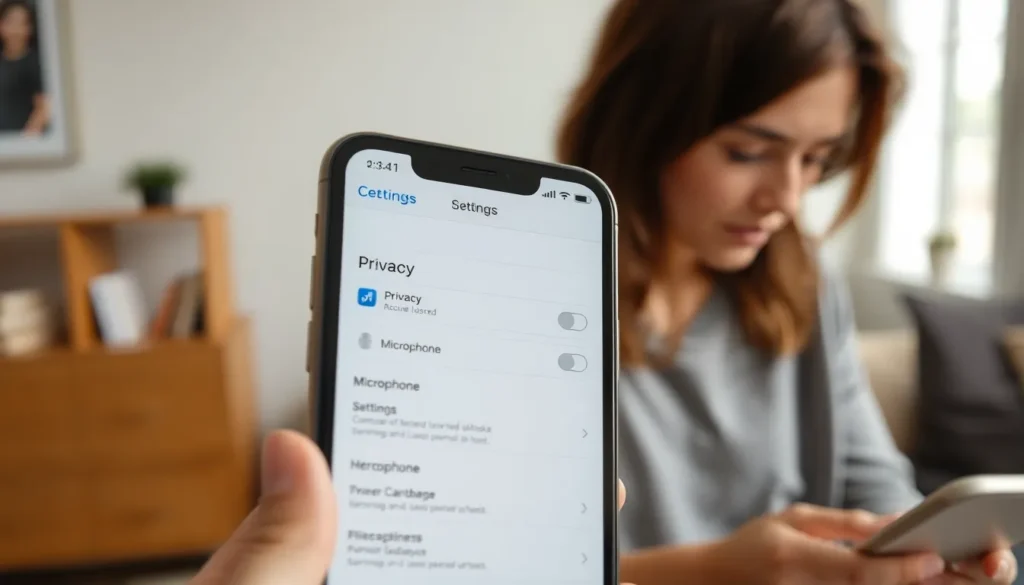
Changing the microphone input on an iPhone involves navigating through settings and selecting the appropriate input option. This process significantly enhances audio quality during calls and recordings.
Accessing Settings
First, open the Settings app on the iPhone. This application contains various options for configuring the device’s functionality. Scroll down and tap on Privacy, then select Microphone. A list of apps that require microphone access appears. Each app displays a toggle switch to enable or disable microphone permissions, ensuring specific applications access the microphone as needed. Users can adjust these settings depending on their preferences.
Selecting the Desired Input
After configuring app permissions, he or she can choose the desired microphone input. Some applications allow microphone selection within their interface. During a recording or call, the app may prompt the user to switch inputs. Select the option that suits the situation best, such as the primary or an external microphone. Recording a short audio clip can help determine if the selected input captures sound clearly.
Troubleshooting Common Issues
Common issues arise with iPhone microphones, affecting usability during calls and recordings. Addressing these problems can enhance the overall audio experience significantly.
Microphone Not Responding
When a microphone becomes unresponsive, checking settings proves essential. Accessing the Settings app and reviewing microphone permissions can resolve many issues. Ensure that specific apps have access to the microphone; some may need toggling to function properly. Restarting the iPhone often resets any temporary glitches. If these steps fail, testing with another audio recording app can help identify the problem’s source. Users may need to update their devices to the latest software version, as updates often fix known bugs.
Quality of Audio Input
Audio quality issues frequently stem from background noise or improper settings. Adjusting app permissions to allow microphone access can improve clarity. Recording short samples provides insights into audio performance, helping users identify distortions or discrepancies. Using an external microphone often elevates sound quality significantly for calls or recordings. Positioning near noise sources should be avoided, as it can interfere with audio capture. Regularly updating software keeps microphone functionality optimized, promoting a better overall listening experience.
Best Practices for Using External Microphones
Using external microphones boosts audio quality during calls and recordings. Choose a microphone that matches the recording environment; directional microphones excel in noisy settings. Prioritize compatibility with the iPhone to ensure seamless operation.
To obtain the best sound, position the microphone close to the speaker’s mouth. Avoid areas with heavy background noise that can interfere with clarity. Consider using windshields for outdoor recordings to minimize wind noise.
Testing the external microphone before important recordings is essential. Recording short clips helps identify any sound issues early on. Monitor input levels to ensure they’re not too high or low for optimal audio capture.
Connecting the microphone securely prevents unwanted disconnections during use. Regularly cleaning the microphone input helps maintain performance. Investing in quality cables can provide more reliable connections and reduce noise interference.
Understanding app settings enhances the microphone’s performance. Some applications allow users to select preferred microphones directly in the app. Familiarizing oneself with these settings ensures better audio quality tailored to specific recording scenarios.
Receiving regular software updates is crucial for maintaining optimal microphone functionality. Updates often include enhancements and bug fixes that can improve overall audio experience. Keeping the device updated supports proper use of external microphones and enhances overall performance.
Changing the microphone input on an iPhone can significantly enhance audio quality during calls and recordings. By understanding how to manage app permissions and select the right microphone, users can ensure clearer sound capture. Testing different microphone options and utilizing external devices when necessary can further improve the audio experience.
Regular software updates are vital for maintaining microphone functionality. With proper settings and best practices in place users can enjoy a seamless audio experience whether they’re on a call or recording their next big project. Embracing these tips will lead to better sound quality and more effective communication on their iPhones.


