

In a world where storage space on an iPhone feels like a rare commodity, it’s time to unleash the power of Google Photos. Imagine having all your precious memories stored safely in the cloud, ready to be accessed anytime, anywhere—without the dreaded “storage full” notification popping up like an unwanted guest.
Overview of Google Photos
Google Photos offers a robust solution for managing and storing images. Users can back up photos and videos in high quality, ensuring memories are preserved without consuming local storage. The platform supports automatic organization, making it easy to find specific images through search features.
Features include editing tools and sharing options. Users can enhance their photos with filters or adjustments directly within the app. Additionally, sharing albums or individual images with friends and family occurs seamlessly. Privacy settings allow users to control visibility for shared content.
Storage options vary, catering to different needs. Google offers a free tier with limited storage, which suits casual users. Paid plans expand availability significantly, accommodating extensive photo collections.
Access is simple across multiple devices. Google Photos syncs content automatically, providing access on smartphones, tablets, and web browsers. This flexibility allows users to view and upload photos anytime, from anywhere.
Regular updates enhance user experience. Google continuously adds features, such as improved search algorithms and new editing tools, ensuring the app remains competitive. Moreover, users benefit from integration with other Google services, facilitating a comprehensive digital storage ecosystem.
Overall, Google Photos stands out as an efficient cloud-based solution for photo storage and management. Its features address common storage challenges faced by iPhone users, providing a streamlined alternative for preserving precious memories.
Preparing Your iPhone
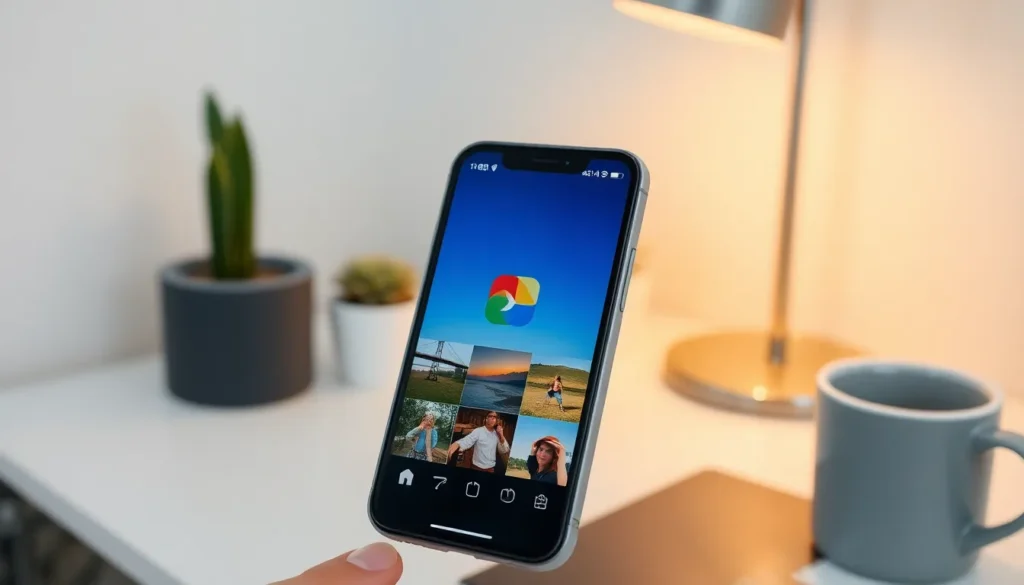
Ensuring that the iPhone is ready for Google Photos uploads simplifies the process. Users must check compatibility and update the app to enjoy a seamless experience.
Checking iPhone Compatibility
First, confirm that the iPhone runs on a compatible iOS version. Google Photos requires iOS 13 or later for optimal functionality. Users can check their current iOS version by navigating to Settings, tapping General, and selecting About. If the version doesn’t meet the requirement, upgrading the iPhone might be necessary. Additional factors include available storage; there must be enough space to install the app and store photos.
Updating Your Google Photos App
Updating the Google Photos app ensures access to the latest features and improvements. Users can visit the App Store, search for Google Photos, and tap Update if an update is available. The app can also be set to auto-update in the App Store settings to keep it current automatically. Having the latest app version will enhance backup efficiency and reduce potential issues during photo uploads. Taking these steps prepares the iPhone to work effectively with Google Photos.
Uploading Photos to Google Photos
Uploading photos to Google Photos offers a simple way to manage your memories. Users must select their preferred network settings to ensure a smooth upload experience.
Using Wi-Fi vs. Cellular Data
Using Wi-Fi for uploads greatly improves speed and efficiency. Wi-Fi connections provide faster transfer rates compared to cellular data. Cellular data often incurs limits on data usage and can lead to slower uploads. Wi-Fi allows users to upload large photo collections without worrying about data charges. Users should choose Wi-Fi, especially when backing up a significant number of photos.
Step-by-Step Guide
- Open the Google Photos app on your iPhone after installing it.
- Sign in with your Google account if prompted.
- Tap on the “Photos” tab at the bottom of the screen.
- Select the “Upload” button typically found at the top right corner.
- Choose photos or videos from your iPhone’s library to upload.
- Confirm the upload to begin the backup process.
- Monitor upload progress through the notification panel.
Following these steps ensures a straightforward and efficient upload experience.
Managing Your Photos
Managing photos within Google Photos enhances organization and sharing capabilities. Users can efficiently categorize images, making it easier to locate cherished memories.
Organizing Albums and Groups
Creating albums and groups simplifies photo management. Users can start by selecting images for an album, then tapping on the “+” icon, which prompts a new album creation. Labels add context, helping others understand what the album contains. Utilizing this feature allows for easy navigation through various themes or events, such as family gatherings or vacations. Users can also opt to share albums, making it simpler for friends and family to view shared experiences. Frequent updates to albums keep memories fresh and organized.
Sharing Photos with Others
Sharing photos in Google Photos provides flexibility and privacy control. To share, users select images and tap the share icon, revealing several options for distribution. Users can send pictures via text, email, or social media platforms seamlessly. Adjusting privacy settings ensures that only intended recipients gain access to sensitive content. Shared albums enable collaborative contributions from multiple users, adding a communal feel to memories. Alerts notify users when others add images, fostering engagement and interaction.
Troubleshooting Common Issues
Users may encounter various issues while adding iPhone photos to Google Photos. Addressing these challenges effectively can improve the overall experience.
Syncing Problems
Syncing problems often arise due to network connectivity issues or device settings. Check the Wi-Fi connection to ensure consistent internet access. Users can also confirm that backup settings within the Google Photos app are correctly configured. Enabling cellular data for backup may also help if Wi-Fi isn’t available. If photos still aren’t syncing, restarting the device can resolve temporary glitches. It’s important to ensure that Google Photos permissions allow access to the device’s photos. Adjust settings as necessary to complete the synchronization process.
App Crashes or Bugs
App crashes or bugs may hinder the uploading experience on Google Photos. Regularly updating the app helps prevent these issues, as new updates often include bug fixes. Clearing the app’s cache can also enhance performance and stability. Users who’ve enabled low-storage mode on their iPhones should disable it, as this can limit app functionality. Restarting the app can resolve occasional crashes. In persistent cases, reinstalling Google Photos acts as a last resort that often fixes unresolved software conflicts.
Embracing Google Photos can transform how iPhone users manage their photo collections. With its cloud-based storage and powerful features users can safeguard their memories without worrying about device limitations. The ease of access and organization makes it a go-to solution for anyone looking to streamline their photo experience.
By following the outlined steps and tips users can effortlessly upload their photos while enjoying the benefits of enhanced organization and sharing capabilities. Troubleshooting tips ensure a smooth process even when challenges arise. With Google Photos users can enjoy peace of mind knowing their cherished moments are securely stored and easily accessible anytime and anywhere.


